Appearance
DSL editor
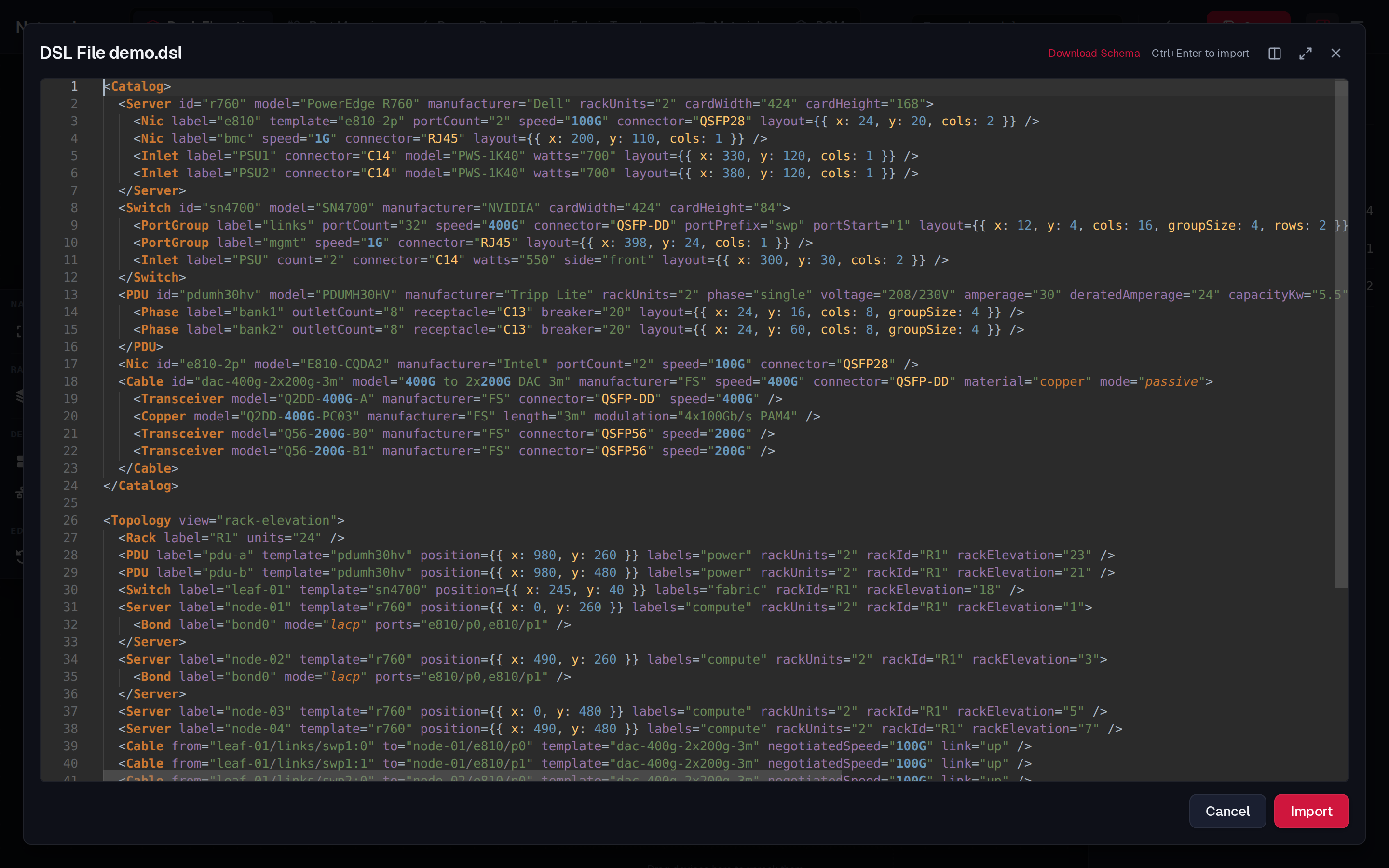
The DSL editor shows the whole topology as DSL text and lets you edit it directly. Use it to paste in a design, make changes faster than clicking (renaming many ports, adding fifty cables), or fix a file that would not open.
Opening the editor
Any of these opens it:
- the Import DSL button (code icon) in the top bar — on a narrow window it is in the overflow menu;
- the Import DSL button in the left toolbar of Port Mapping and Power Budget;
- Ctrl+I (⌘+I on a Mac).
It also opens by itself when you open a file (from disk, by drag-and-drop, or from S3) that has errors: the editor then holds that file's text, with its errors already marked, so you can fix it and import it.
When it opens normally, the editor holds the current topology written out as DSL. The title bar says where the text came from: DSL Browser (the open document), DSL File <name> or DSL S3 <name>.
The text is a snapshot
The text is taken when the editor opens. Changes you make on the canvas while it stays open (for example in split mode) are not added to it. Close and reopen the editor to pick them up.
Editing
The editor is Monaco (the editor of VS Code), with syntax colouring for tags, attributes, {{ … }} objects, speeds, connectors and modes. Standard editing keys work: multi-cursor, find and replace (Ctrl+F / Ctrl+H), undo. There is no autocomplete: the DSL reference lists every element and value. The Download Schema link in the editor's header downloads the same reference as a single Markdown file.
Applying your changes
Edits are not applied as you type. Press Import (or Ctrl+Enter in the editor) to apply them:
- If the text is valid, it replaces the whole document — every device, cable and catalog template. The app switches to the view named in
<Topology view="…">, the document is marked unsaved, and the editor closes. The import is a single undo step: Ctrl+Z brings the previous document back. - If the text has errors, nothing is changed. Each error gets a red marker in the text and a line in the list under the editor (
line:column message); click a line to jump to it. The cursor moves to the first error. The markers clear as soon as you type.
Cancel, the × button and Esc close the editor without applying anything.
Window modes
Buttons in the editor's header switch how it sits on screen. The text, cursor and undo history are kept when you switch.
| Mode | Button | What it does |
|---|---|---|
| Float | picture-in-picture icon | A dialog in the middle of the screen (the default). Drag any edge or corner to resize it. Clicking outside closes it |
| Split | columns icon | Docks to the left or right of the app, which stays usable beside it. Drag the divider to resize; Move to the left/right swaps sides |
| Full screen | maximize icon | Covers the whole window |
The mode and size are remembered in the browser.
Exporting the DSL
Export DSL (upload icon in the top bar, or in the left toolbar), or Ctrl+E, downloads the current topology as topology.dsl. See Files, saving and sharing.
A typical round trip
- Press Ctrl+I. The editor shows the current design.
- Add a rack and a server, for example:xmlinside
<Rack label="R9" units="42" /> <Server label="node-099" template="r760" rackId="R9" rackElevation="1" /><Topology>. - Press Ctrl+Enter. If the template id is wrong, the error list says so; fix it and press it again.
- The new rack appears in Rack Elevation. Press Ctrl+S to save.